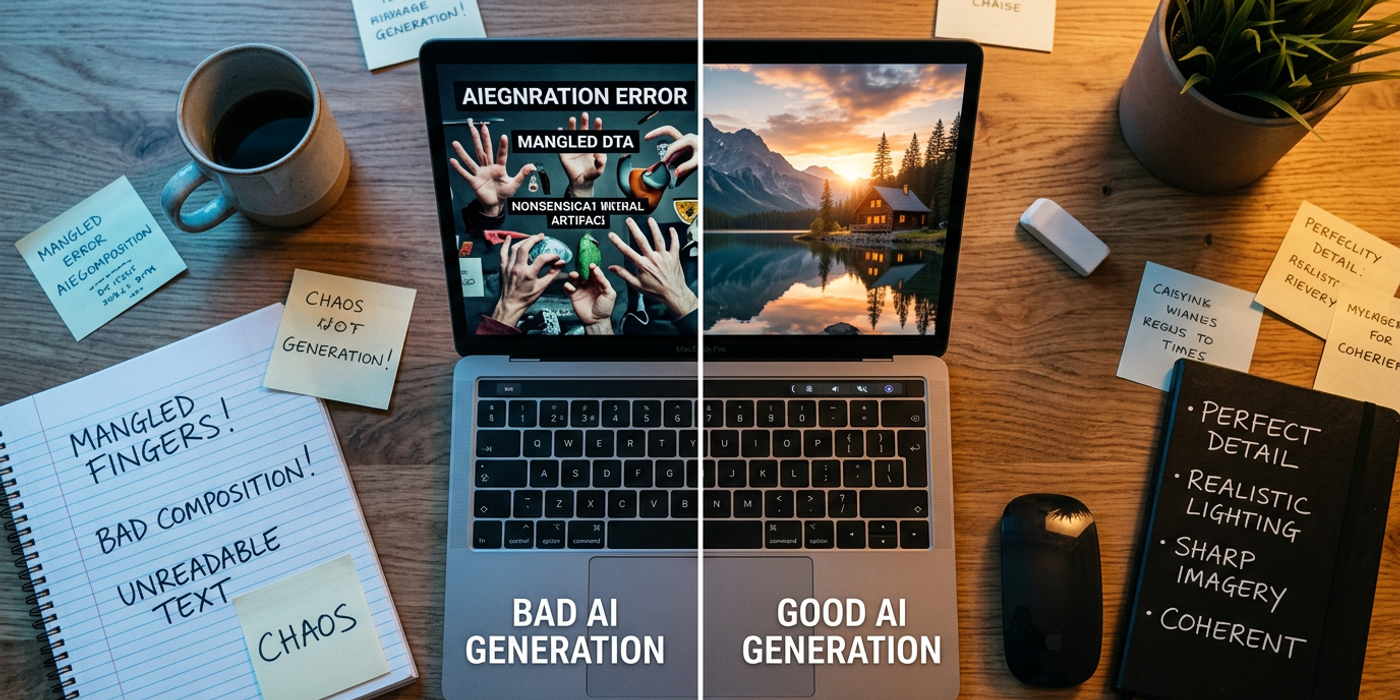
Stop wasting credits on average AI generations. Learn 7 common AI prompt mistakes — from vague descriptions to missing negatives — and how to fix each.
You write a prompt, hit generate, and... the result is nothing like what you imagined. The colours are wrong, the lighting is flat, and that "cinematic masterpiece" looks more like a blurry mess. Sound familiar?
You're not alone. Most beginners — and even some experienced creators — make the same AI prompt mistakes over and over. And here's the thing: every bad generation costs credits and time.
Let's break down the 7 most common AI prompt mistakes and, more importantly, how to fix them.
Mistake #1: Being Too Vague
The number one mistake in AI image generation is writing prompts that are too general.
Bad: "A beautiful landscape" Good: "A misty mountain landscape at sunrise, pine forest in the foreground, golden light rays piercing through clouds, ultra-detailed, photorealistic"
AI models need specifics to work with. Without details about lighting, composition, mood, and style, the model has to guess — and it usually guesses wrong.
The fix: Before you write a prompt, ask yourself: where is this scene? What time of day? What's the lighting? What mood am I going for? List 3-5 descriptive details before you start typing.
Mistake #2: Forgetting the Negative Prompt
Negative prompts are one of the most underused features in AI image generation tools. They tell the model what you don't want in the image.
Without negative prompt: You might get distorted hands, weird text, or an art style you didn't ask for. With negative prompt: "blurry, low quality, deformed hands, text, watermark, extra fingers, cartoon, painting"
In Cooly Studio, you can set negative prompts per generation. It takes 10 seconds and saves you dozens of regenerations.
The fix: Always include a negative prompt. Start with a standard block like "blurry, low quality, distorted, ugly, bad anatomy" and customise from there.
Mistake #3: Overloading the Prompt
More isn't always better. A prompt with 50 disconnected keywords confuses the model instead of guiding it.
Bad: "Dragon, castle, knight, princess, fire, sword, mountain, river, forest, sunset, magic, sparkles, cinematic, epic, photorealistic, fantasy, medieval, battle, clouds, birds" Good: "A silver dragon perched on a stone castle tower at sunset, medieval fantasy, cinematic lighting, photorealistic"
The fix: Pick 3-5 key elements and focus on describing them well. Quality over quantity applies to prompts too.
Mistake #4: Ignoring Style and Medium
Telling the model what medium or style you want makes a massive difference.
"I want a photorealistic image" is very different from "I want an oil painting" or "I want an anime-style illustration." If you don't specify, you get whatever the model defaults to — which is often a generic "AI look" that screams generated.
The fix: Be explicit about your desired style: "photorealistic", "cinematic", "oil painting", "watercolour", "pixel art", "3D render", "anime", "vintage photograph". The more specific, the better.
Mistake #5: Not Using Weighted Terms or Emphasis
Most modern AI image models support weighted keywords — you can tell them which parts of your prompt matter more.
Instead of: "A red sports car driving on a coastal road at sunset" Try: "A red sports car driving on a coastal road at sunset, (bright red:1.3), dramatic golden hour lighting"
The :1.3 tells the model to emphasise "bright red" more than the rest of the prompt. This prevents the model from averaging everything out into a muddy result.
The fix: Use emphasis syntax like (keyword:1.2) or (keyword:1.5) to prioritise your most important elements. Cooly Studio supports this natively — just wrap the important words in parentheses with a weight.
Mistake #6: Using the Same Model for Everything
Different AI models have different strengths. Using one model for every type of image is like using a hammer for every tool in your toolbox.
- Seedream 4 — excellent for photorealistic portraits and detailed scenes - Nano Banana 2 — fast, great for concept art and stylised images - Flux Schnell — optimised for speed, good for quick iterations - SDXL — versatile, good for general use
In Cooly Studio, you can switch between models with one click. Match the model to your use case.
The fix: Learn what each model does best. Use photorealistic models for product shots and portraits. Use fast models for brainstorming and iterations. Use stylised models for creative projects.
Mistake #7: Not Iterating on Results
The biggest mistake? Stopping after one generation. AI image generation is an iterative process. The first result is rarely the best.
The workflow that works: 1. Generate 3-4 variations of your prompt 2. Pick the best elements from each 3. Refine your prompt based on what worked 4. Generate again with the improved prompt 5. Repeat until you're happy
Cooly Studio's batch generation and variation features make this workflow fast. Each iteration costs a fraction of what a reshoot or redesign would cost.
The fix: Treat AI generation like photography — you wouldn't take one photo and call it a day. Iterate, refine, and improve.
Frequently Asked Questions
Q: What is a negative prompt and how do I use one? A: A negative prompt tells the AI what you don't want in the image — like "blurry", "deformed hands", or "watermark". In Cooly Studio, you can set negative prompts alongside your main prompt to eliminate common issues before they happen.
Q: How long should an AI image prompt be? A: Aim for 15-30 words. Too short and the model has nothing to work with. Too long and the model loses focus. Include subject, setting, lighting, style, and mood.
Q: Does Cooly Studio support weighted prompts? A: Yes. Cooly Studio supports emphasis syntax — use (keyword:weight) to tell the model which parts of your prompt matter more. For example, (golden lighting:1.4) ensures warm tones aren't averaged out.
Q: What's the best AI image model for beginners? A: Nano Banana 2 is great for beginners — it's fast, handles complex prompts well, and produces consistently good results. As you get more comfortable, experiment with Seedream 4 for photorealistic work or Flux Schnell for speed.
Q: How do I know which AI model to use for my project? A: Match the model to your goal. Use photorealistic models (Seedream 4) for product photography and portraits. Use stylised models (Nano Banana 2, SDXL) for creative and abstract work. Use fast models (Flux Schnell) for quick iterations and brainstorming.
Q: Can I use the same prompt across different AI models? A: Yes, but results will vary. Each model interprets prompts differently. That's why Cooly Studio makes it easy to switch models and compare results — find the combination that works best for your specific needs.
Q: How can I save credits while still getting good results? A: Use negative prompts to avoid wasted generations. Start with fast models for rough drafts, then switch to high-quality models for the final render. Batch generate variations to find the best result faster. And always iterate — refining an existing result costs less than starting from scratch.
Q: What's the single biggest improvement I can make to my prompts today? A: Add a negative prompt and be more specific about lighting. Most bad AI generations come from vague descriptions and missing constraints. Fix those two things and your results will improve dramatically.