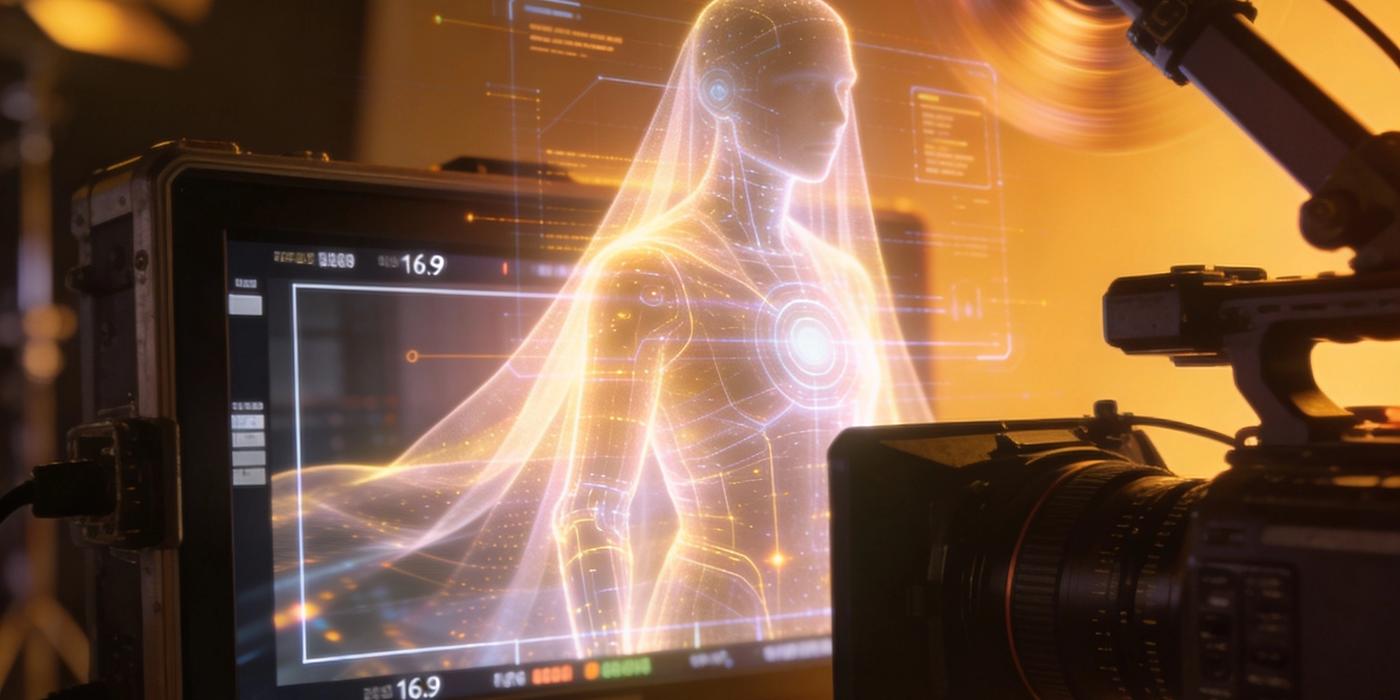
Master cinematic AI video with Veo 3.1 on Cooly Studio. Learn camera angles, lighting prompts, motion control, and editing workflows — no film degree needed.
Making cinematic AI videos used to require a film crew, expensive cameras, and years of training. Not anymore.
Veo 3.1, Google's latest video generation model available on Cooly Studio, brings Hollywood-quality results within reach of anyone with a creative vision. Whether you're a Hong Kong ad agency producing a 30-second spot, a marketer creating social content, or an indie filmmaker exploring new tools, Veo 3.1 can help you produce genuinely cinematic output — if you know how to prompt it right.
This step-by-step guide walks you through the exact workflow for creating cinematic AI videos with Veo 3.1, from prompt structure to post-production.
Understanding What Makes a Video "Cinematic"
Before you write a single prompt, it helps to understand what makes footage feel cinematic in the first place. Cinematic video has distinct characteristics that separate it from amateur-looking content:
Depth of field. Professional films use shallow depth of field to separate the subject from the background. In Veo 3.1, you can achieve this by specifying "shallow depth of field," "bokeh background," or "shot on 85mm lens at f/1.8."
Intentional lighting. Cinematic lighting is never flat. It comes from specific directions, creates shadows, and establishes mood. Terms like "golden hour," "chiaroscuro lighting," "three-point lighting setup," and "practical light source" tell Veo 3.1 the kind of lighting you want.
Deliberate camera movement. Think tracking shots, slow push-ins, pans, and crane movements. Amateur video is static. Cinematic video moves with purpose. Veo 3.1 responds well to camera movement prompts like "slow dolly in," "camera orbits around the subject," or "smooth pan from left to right."
Color grading. Films are color-graded to create a consistent emotional tone. You can prompt for this directly: "teal and orange grade," "warm desaturated look," "vintage film stock," or "cool blue aesthetic."
Composition. The rule of thirds, leading lines, and framing devices all contribute to the cinematic feel. Including these in your prompt guides Veo 3.1 toward better results.
Step 1 — Structure Your Prompt for Cinematic Results
Veo 3.1 responds best to structured prompts that separate the visual description from the technical specification. Here's a template that works consistently:
` [Subject and action] — [environment and atmosphere] — [lighting and camera] — [mood and style] `
Example prompt that delivers cinematic output:
A woman in a red silk dress walks through a rainy Tokyo alleyway at night — neon signs reflect off wet pavement, steam rises from a street vendor's cart — three-point lighting with practical neon sources, slow motion tracking shot from behind at waist height — cinematic, Blade Runner aesthetic, warm highlights and cool shadows, 24fps, shallow depth of field
This structure works because it gives Veo 3.1 four distinct layers of information: what's happening, where it happens, how it's filmed, and what it should look like.
Step 2 — Master Camera Movement Prompts
Camera movement is one of the most powerful tools in Veo 3.1. Here are camera prompts that consistently produce great results:
| Camera Movement | Best Used For | Example Prompt Fragment | |----------------|---------------|------------------------| | Slow push-in | Building tension, intimacy | "slow push-in on subject's face" | | Tracking shot | Action, movement | "camera tracks alongside" | | Dolly zoom | Disorientation, drama | "dolly zoom effect" | | Crane up | Reveal, scale | "camera cranes up to reveal" | | Orbit | Showcasing a subject | "camera orbits 360 degrees around" | | Handheld | Energy, documentary feel | "slight handheld movement, documentary style" |
Combine camera movement with lens specifications for the best results: "shot on 35mm film with anamorphic lens, slow pan right" gives Veo 3.1 much more to work with than just "pan right."
Step 3 — Use Reference Style Descriptions
Veo 3.1 understands directorial and cinematographic references. Try these style anchors:
Wes Anderson style: Symmetrical composition, pastel color palette, flat camera angles, precise movement. Prompt: "Wes Anderson symmetrical framing, pastel pink and yellow color palette, static camera, theatrical lighting."
Denis Villeneuve style: Wide landscape shots, slow-paced, grounded, natural lighting with dramatic shadows. Prompt: "wide anamorphic landscape shot, golden hour natural light, slow meditative pace, Denis Villeneuve aesthetic."
Noir style: High contrast, deep shadows, hard light, rain, smoke. Prompt: "film noir aesthetic, high contrast chiaroscuro lighting, rain-slicked streets, hard shadows, black and white."
Music video style: Fast cuts, dynamic movement, vibrant colors, stylized lighting. Prompt: "music video style, vibrant neon colors, dynamic camera movement, stylized lighting, 30fps."
You don't need to name a director every time — describing the visual qualities is often more reliable. But a well-known reference combined with descriptive language can give Veo 3.1 a strong anchor.
Step 4 — Set the Right Parameters in Cooly Studio
When generating with Veo 3.1 in Cooly Studio, these settings matter:
Resolution: Veo 3.1 supports up to 4K output. For cinematic work, 1080p is usually sufficient and generates faster. Reserve 4K for client deliverables or large-format display.
Duration: Shorter clips (5-10 seconds) give Veo 3.1 higher consistency. For longer narrative sequences, generate multiple shorter clips and stitch them together in post-production.
Frame rate: 24fps is the cinematic standard. 30fps works for broadcast and online. Prompt for it explicitly: "24fps, film-like motion blur."
Motion intensity: Veo 3.1 offers motion control parameters. Lower settings work for subtle, intentional movement. Higher settings work for action sequences but can introduce artifacts.
Step 5 — Combine Multiple Generations for a Complete Scene
Cinematic storytelling rarely comes from a single shot. Plan your scene as a sequence of distinct shots that cut together:
1. Establishing shot — Wide angle, sets the scene. Prompt: "wide establishing shot of a neon-lit Hong Kong street at night, rain, cinematic" 2. Medium shot — Introduces the subject. Prompt: "medium shot of chef preparing dim sum in a busy kitchen, steam rising, warm lighting, 85mm lens" 3. Close-up — Emotional or detailed. Prompt: "extreme close-up of hands folding dumplings, steam, selective focus, macro lens" 4. Reaction shot — Subject responds. Prompt: "close-up of chef tasting broth, subtle smile, shallow depth of field, soft key light"
Generate each shot separately with consistent style prompts, then edit them together in your video editor. This approach gives you much more control than trying to generate a long single clip.
Step 6 — Edit and Polish in Post-Production
Veo 3.1 delivers outstanding raw footage, but a few post-production steps will elevate it further:
Stabilization. Even well-prompted camera movement can benefit from subtle stabilization. Use your video editor's warp stabilizer or similar tool.
Color grading. Apply a LUT or manual grade to give your clips a unified look. Veo 3.1 clips from different generations may have slight color variations — grading unifies them.
Sound design. Cinematic video is 50% sound. Add ambient audio, foley, and a music track that matches the mood. Nothing takes a viewer out of a scene faster than dead silence.
Pacing and transitions. Cut your clips to match the rhythm of your music or voiceover. Use J-cuts (audio from the next scene starts before the visual cut) for a professional feel.
Step 7 — Iterate and Experiment
The most important skill for cinematic AI video is iteration. Your first generation is rarely your best. Here's a practical workflow for iteration on Cooly Studio:
1. Generate 3-4 variants of each shot with slightly different prompts 2. Pick the best one, identify what's working and what isn't 3. Adjust the prompt based on what you see 4. Generate again with refinements 5. Build your final edit from the best across all iterations
Keep a prompt journal. Write down which camera movements, lighting descriptions, and style references consistently produce the results you want. Over time, you'll build a personal library of proven cinematic prompts.
Frequently Asked Questions
Q: Is Veo 3.1 better than Kling 3.0 for cinematic video? A: Both are excellent, but they excel in different areas. Veo 3.1 handles camera movement prompts and lighting consistently better, making it ideal for cinematic work. Kling 3.0 excels at physics and complex action sequences. Try both on Cooly Studio — your project's needs will determine the winner.
Q: What's the best resolution for cinematic AI video on Veo 3.1? A: Veo 3.1 supports up to 4K, but 1080p at 24fps is the sweet spot for most projects. It generates faster, costs fewer credits, and still looks excellent on social media, websites, and digital displays.
Q: How long should my Veo 3.1 prompts be? A: 40-80 words is the sweet spot. Too short and you lose control. Too long and the model may dilute the key instructions. Follow the four-part structure: subject, environment, camera, and style.
Q: Can I use Veo 3.1 for commercial client work? A: Yes. Google's licensing allows commercial use of Veo 3.1 generated content. Combined with Cooly Studio's workflow features, it's perfectly suited for agency and brand work.
Q: Do I need a GPU or special hardware to run Veo 3.1? A: No. Veo 3.1 runs entirely in the cloud on Cooly Studio. You only need a web browser and an internet connection. Cooly Studio handles all the compute.
Q: How do I keep characters looking the same across multiple Veo 3.1 generations? A: Use consistent reference descriptions in every prompt — same physical details, same clothing, same lighting style. Cooly Studio also supports image-to-video, so you can generate a character image first and use it as the starting frame for all your video generations.
Q: Can Veo 3.1 generate video longer than 10 seconds? A: Veo 3.1 supports clips up to about 60 seconds, but shorter clips (5-10 seconds) tend to be more consistent. For the best results, generate multiple clips and edit them together.
Q: What's the biggest mistake beginners make with cinematic prompts? A: Focusing only on the subject and ignoring camera and lighting. "A dog running on a beach" gets you flat, generic footage. "A golden retriever running on a beach at sunset, slow motion tracking shot, warm golden light, anamorphic lens, 24fps" gets you cinematic quality.